How to Run a Contract Compliance Review with SMVRT Legal
Once you've used the SMVRT Chatbot to populate your legal agreement, the next step is to ensure your document complies with the legal standards in your state. Our built-in Compliance Review Tool analyzes your contract and provides real-time, state-specific guidance — helping you reduce legal risk and stay compliant with key business laws.
Reference Video:
This guide walks you through how to run a compliance review, what to expect, and how to apply updates to your contract with just a few clicks.
Step 1: Select the Governing State
After your contract is auto-filled, you’ll be prompted to select the state that governs the agreement. This determines which legal standards we’ll use to run your compliance review.
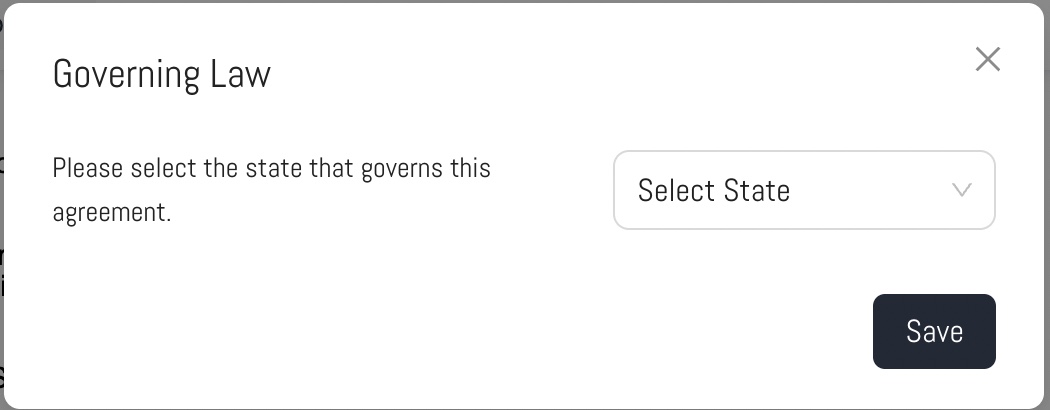
? Example: If you select California, your agreement will be evaluated using current California legal guidelines.
Click Save to confirm your selection.
Step 2: Click “Start Compliance Review”
Once the governing state is set, click the Start Compliance Review button. This launches a real-time legal review of your document based on your selected state.
The SMVRT Compliance Tool scans your agreement and flags key clauses that may need updates — categorizing each one based on legal importance:
High – Critical compliance issues that must be updated to avoid risk
Medium – Recommended updates for better legal clarity or enforceability
Low – Optional suggestions based on best practices
Step 3: Expand Sections to View Recommendations
Each flagged section will be listed with a dropdown (carrot icon). Click the carrot next to any section to view the compliance call-out and recommended changes.
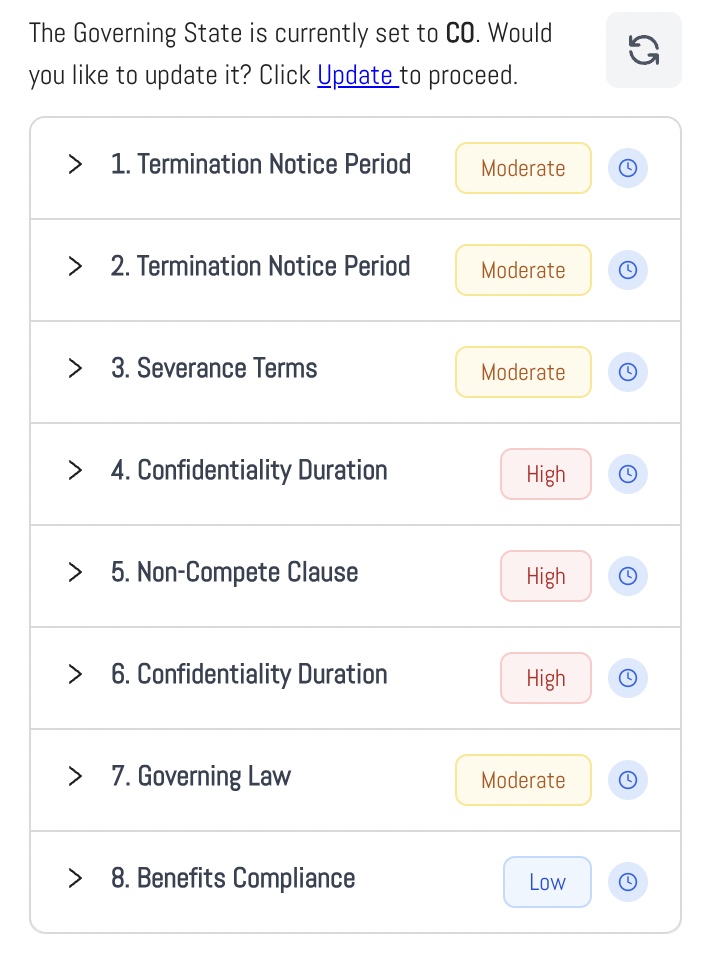
Inside each section, you’ll see three key components:
Original Text
The language currently used in your contract that triggered the compliance flag.
Updated Text
The recommended replacement text, rewritten for compliance with your selected state.
Explanation
A brief note explaining why the change is necessary, referencing legal standards or best practices.
Step 4: Apply Updates with One Click
For each flagged issue, you have two options:
Find – Highlights the original text within your contract so you can see exactly where the issue is
Replace – Instantly swaps the original text with the recommended compliant version
Copy – Allows you to manually insert the recommended language if you prefer to make changes yourself
Once an update has been applied (via Replace or Copy), the call-out will be marked with a ✅ green checkmark to indicate it’s been addressed.
Example
Section: Confidentiality Duration
Importance: High
Original Text:
The Employee agrees to remain bound by confidentiality obligations for a period of [__] years after termination.Updated Text:
The Employee agrees to remain bound by confidentiality obligations for a period of 2 years after termination.Explanation:
California courts enforce confidentiality for a maximum of 2 years post-termination.
Why Use the Compliance Review?
Running a compliance review ensures your contract is:
Aligned with the latest legal standards in your state
Clear, enforceable, and risk-reduced
Easy to update without needing legal expertise
Was this article helpful?
That’s Great!
Thank you for your feedback
Sorry! We couldn't be helpful
Thank you for your feedback
Feedback sent
We appreciate your effort and will try to fix the article