How to Request Legal Assistance
Once your agreement has been created, you can request legal assistance directly from inside your document. This feature allows you to connect with a lawyer, ask questions, and receive guidance without leaving the platform.
Step 1: Request Legal Help
From inside your agreement, click Request Legal Help at the top of the document.
This option is available after your agreement has been created and saved.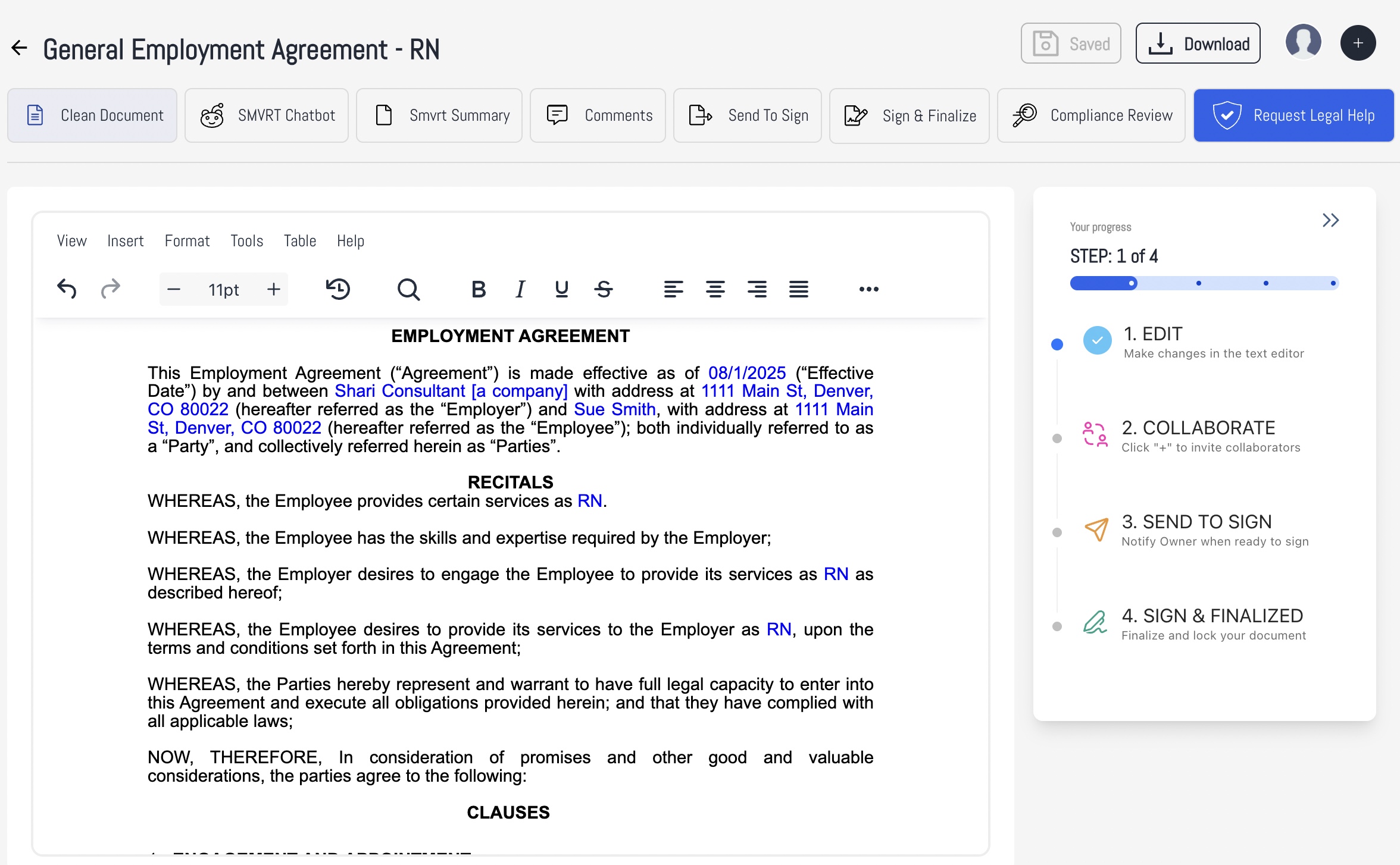
Step 2: Confirm Your Request
A confirmation window will appear asking if you want to request legal help for the project.
Click Yes, Request Help to proceed.
You can cancel if you’re not ready yet.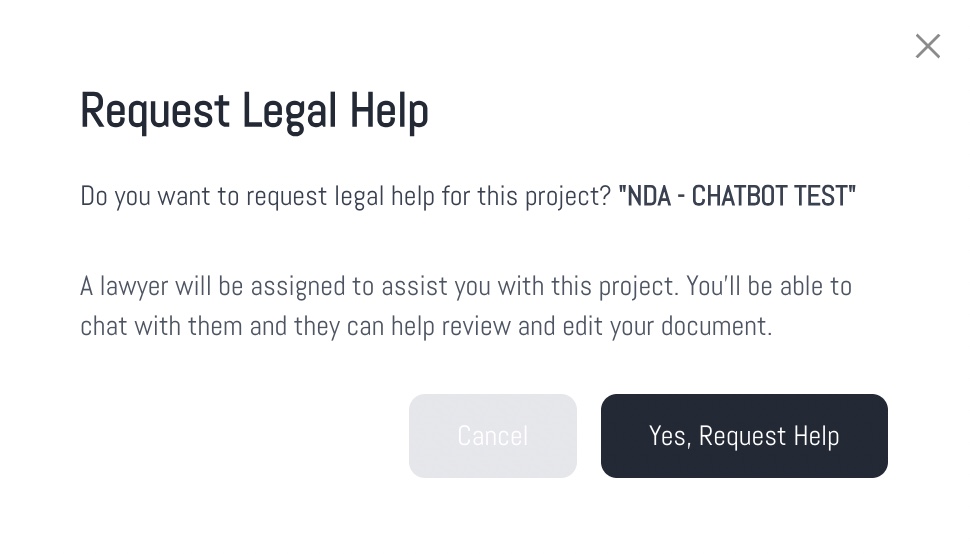
Step 3: Access the Lawyer Chat
Once your request is confirmed:
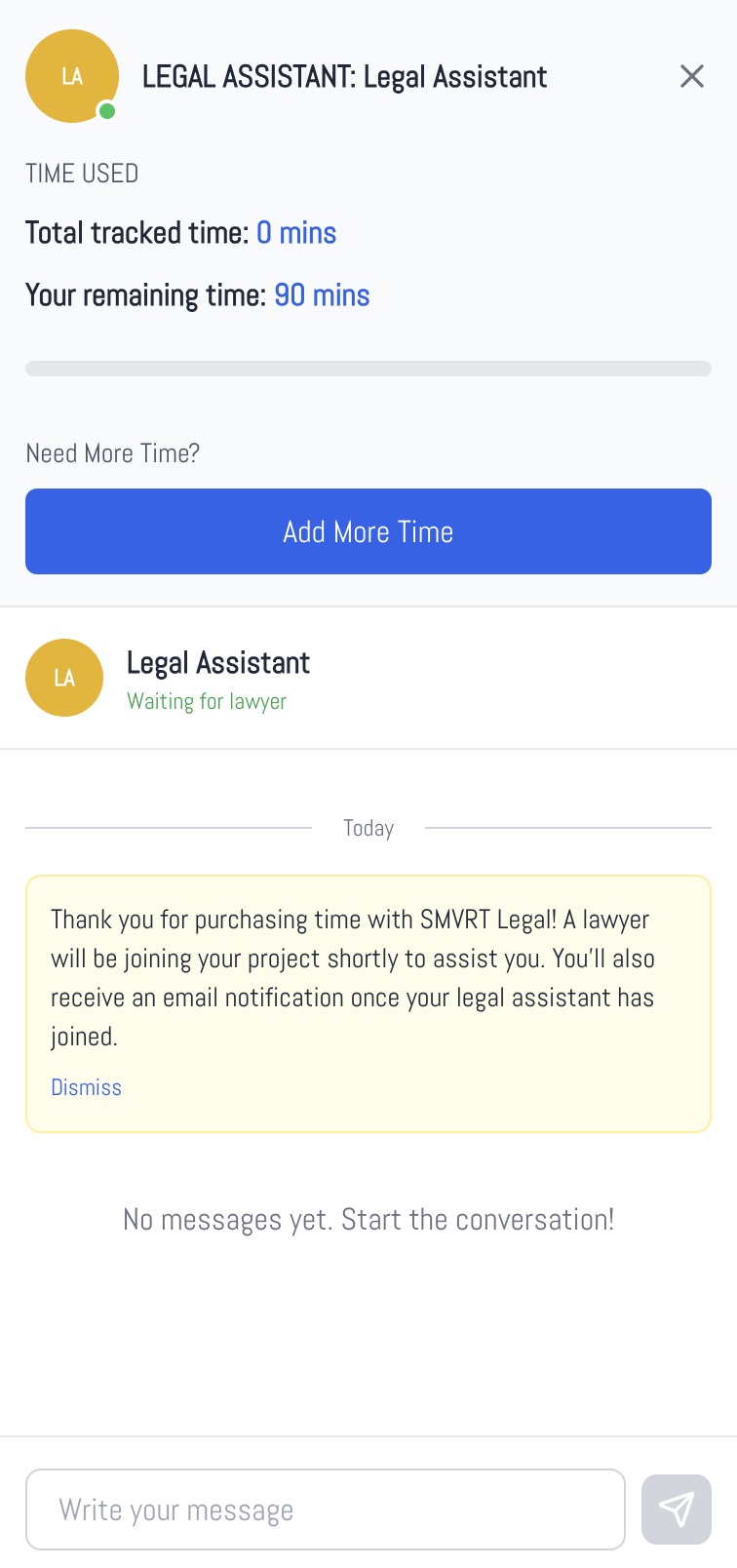
A lawyer is assigned to your project
Your available time is displayed
You can request additional time directly from the chat panel if needed
You’ll see a status message indicating when your lawyer has joined or is on the way.
Step 4: Ask Your Questions in Chat
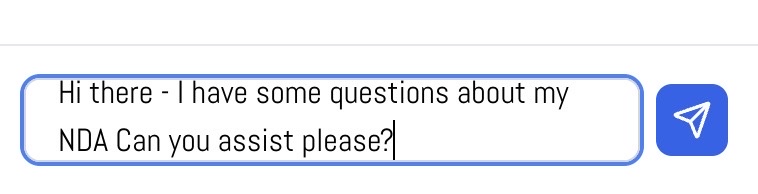
Use the chat field to type your questions or requests for assistance. This is where you can ask for help reviewing, editing, or clarifying specific parts of your agreement.
? Pro Tip: How to Communicate Effectively with a Lawyer
To get the fastest and most helpful responses:
Keep your questions clear and specific
Reference the clause or section you’re asking about
Ask one question at a time when possible
Example:
“Can you review the confidentiality definition in Section 2 and let me know if it’s too broad?”
Step 5: Send Your Message
When your message is ready, click the send arrow to submit it.
Your lawyer will be notified immediately.
Step 6: Wait for a Response
Your lawyer will respond as soon as possible. Response times may vary, so there may be a short delay between messages.
You do not need to stay in the chat while waiting.
Step 7: Get Notified When Your Lawyer Responds
When your lawyer replies:
You’ll receive a notification inside the platform
You’ll also receive an email alert
This means you don’t need to monitor the chat — you’ll be notified when there’s an update.

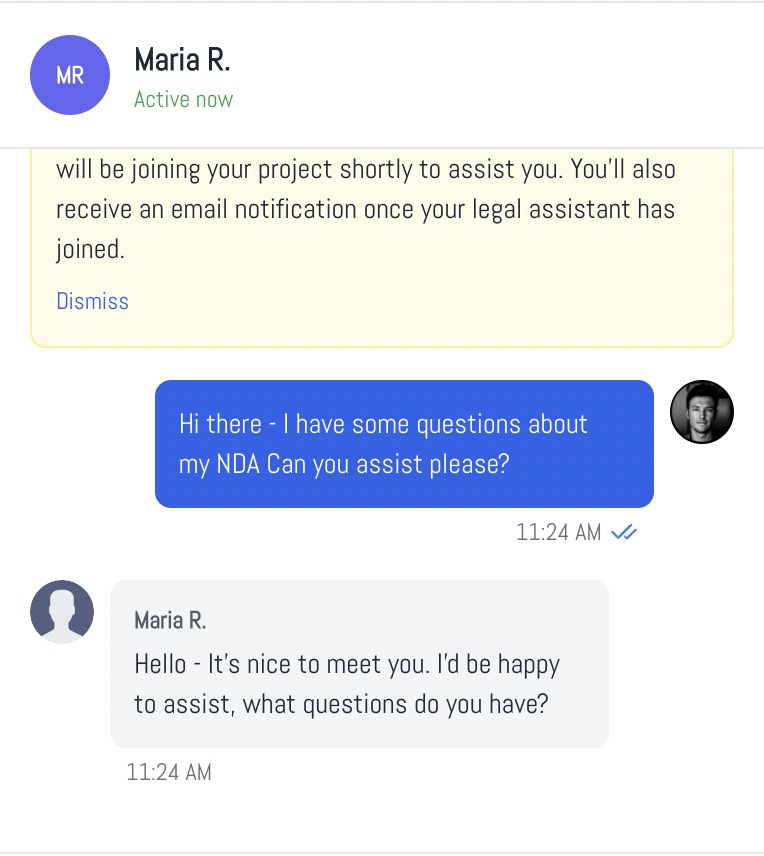
Step 8: Continue Your Conversation with Your Assigned Lawyer
That's it!
Was this article helpful?
That’s Great!
Thank you for your feedback
Sorry! We couldn't be helpful
Thank you for your feedback
Feedback sent
We appreciate your effort and will try to fix the article