Managing the Custom Agreement Process
The Custom Agreement feature allows users to request a legally tailored contract, which is drafted by an attorney based on the information provided. Below is the step-by-step process to track and manage your custom agreement request.
1. Confirmation of Your Request
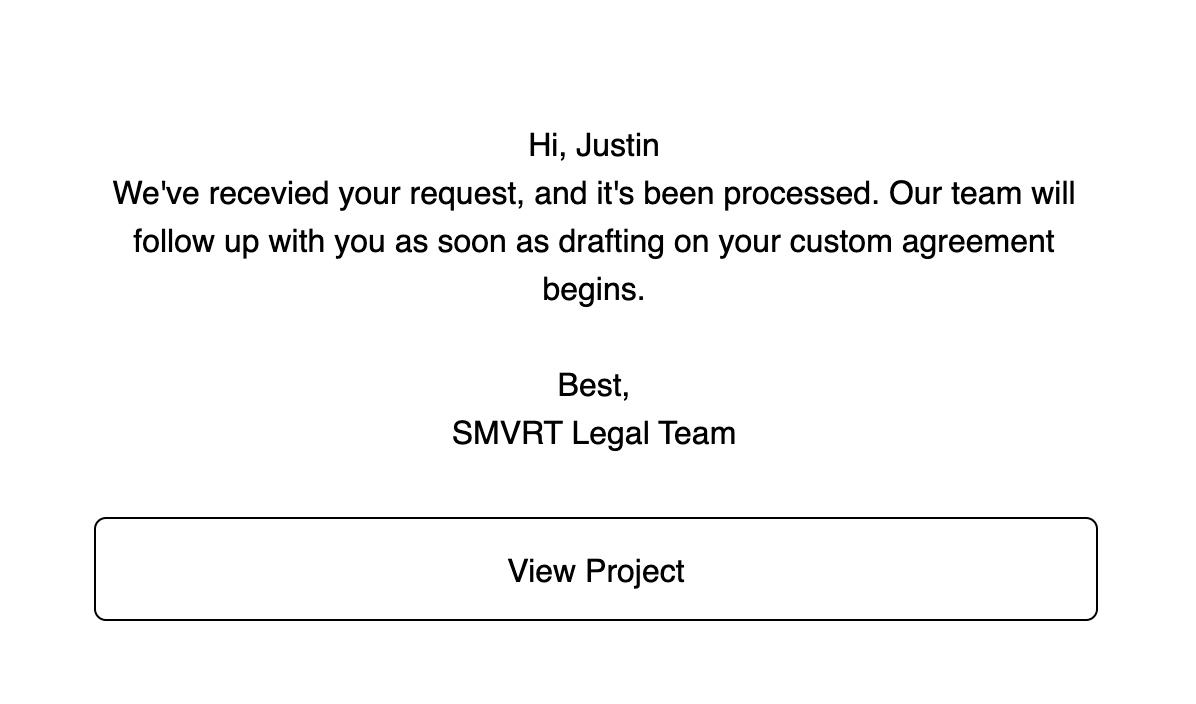
Once you submit a custom agreement request, you will receive an email confirmation acknowledging that your request has been received.
2. Tracking Your Request in the Dashboard
- Your user dashboard will display the agreement’s status as "In Progress."
- This status indicates that our team has received your request and will begin reviewing your submission.

3. Assignment to an Attorney
- Our team will review your questionnaire responses to ensure we have the necessary details.
- Once an attorney is assigned to your request, the status will update to "Drafting."
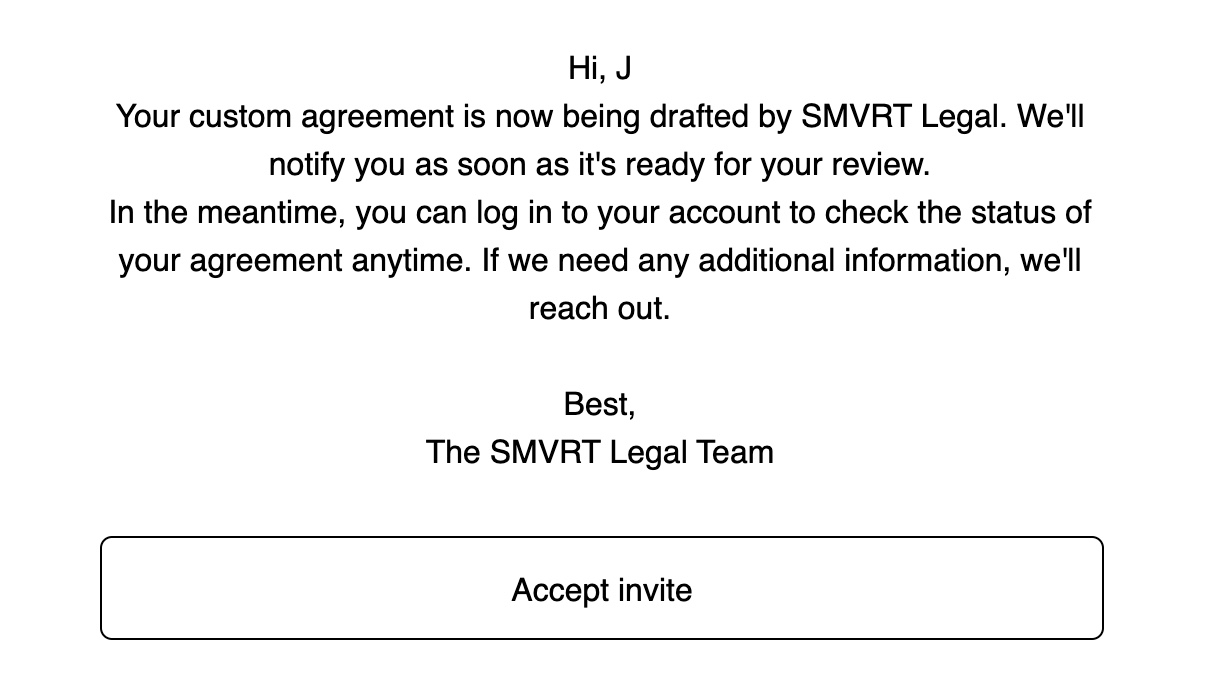
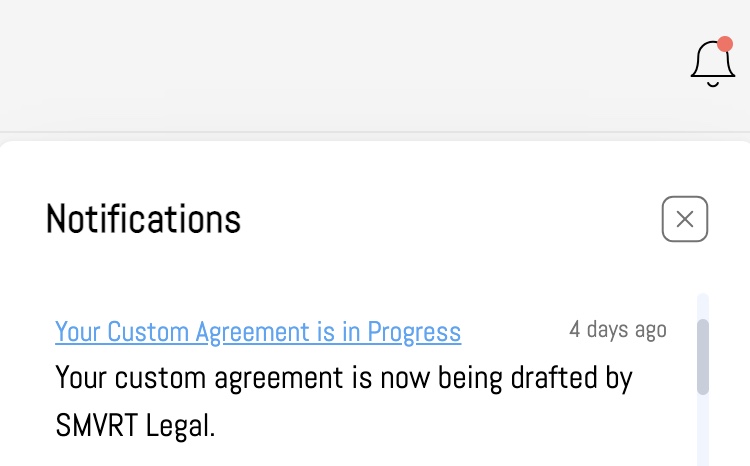
- You will receive both an email notification and an in-platform notification informing you that your request is being worked on.
4. Communicating with the Assigned Attorney
SMVRT Legal provides two methods for chatting with your attorney and commenting on your document.
- You can chat directly with your assigned attorney through the platform’s messenger feature.
- How to message:
- CHAT FEATURE: To ask general questions, we recommend our chat feature. This tool allows you to seamlessly communicate with your Lawyer about general agreement details, questions, etc. This tool is available at all times in your collaboration space.
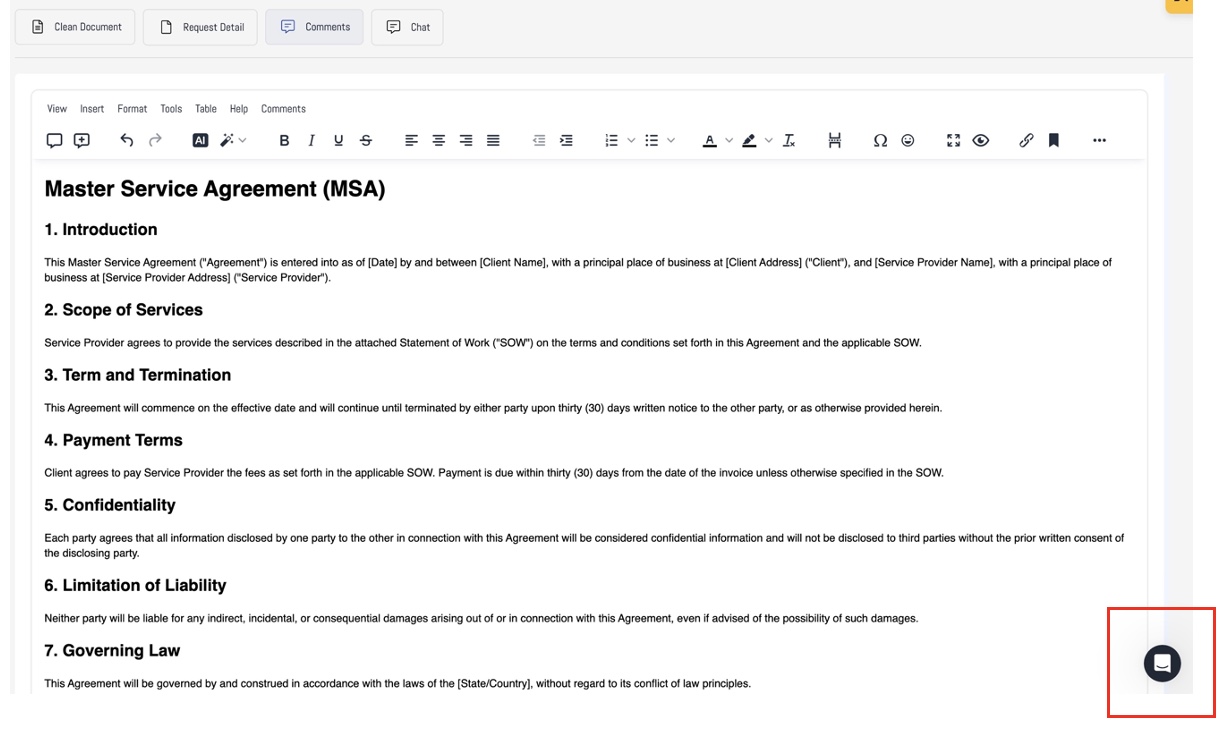
- Use this chat to ask questions, clarify details, or request adjustments to the agreement.
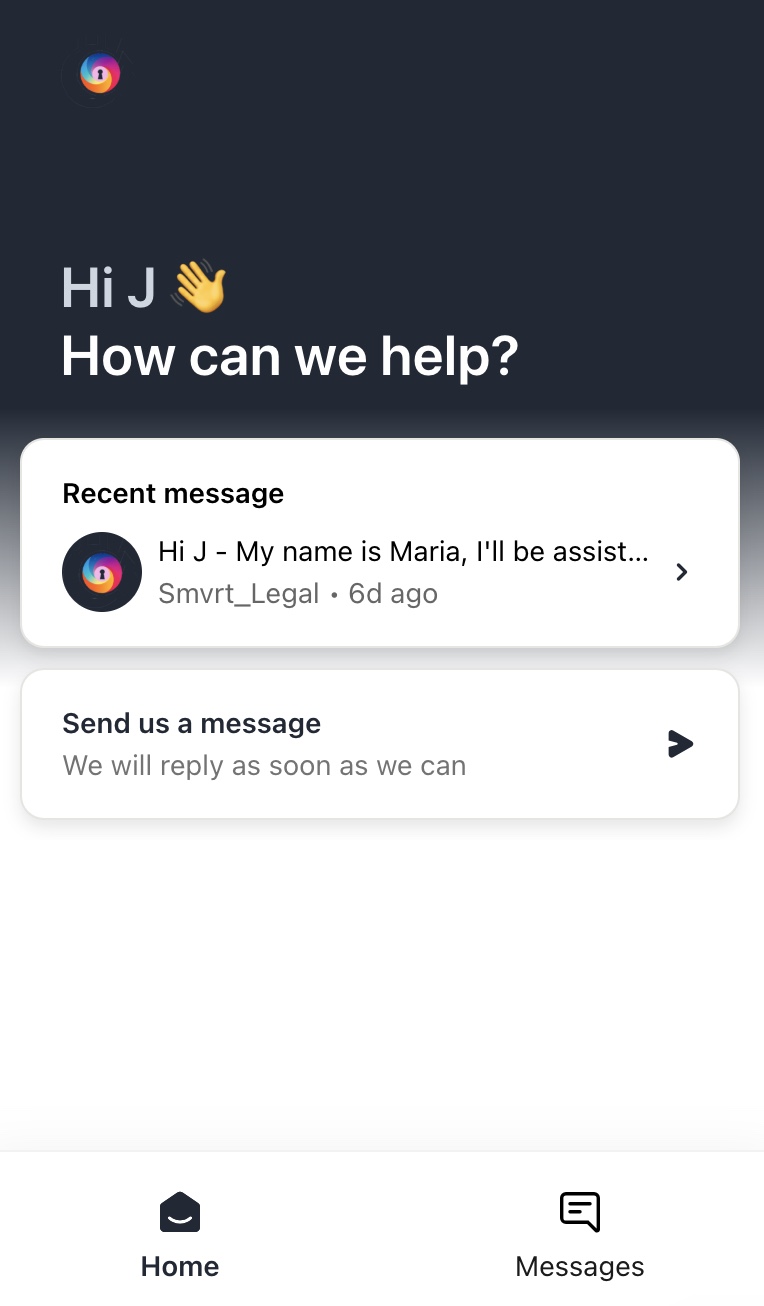
- COMMENTS: To insert comments directly into the chat, we recommend using the Comments feature:
- To comment click > the "Comments" Tab in the top menu
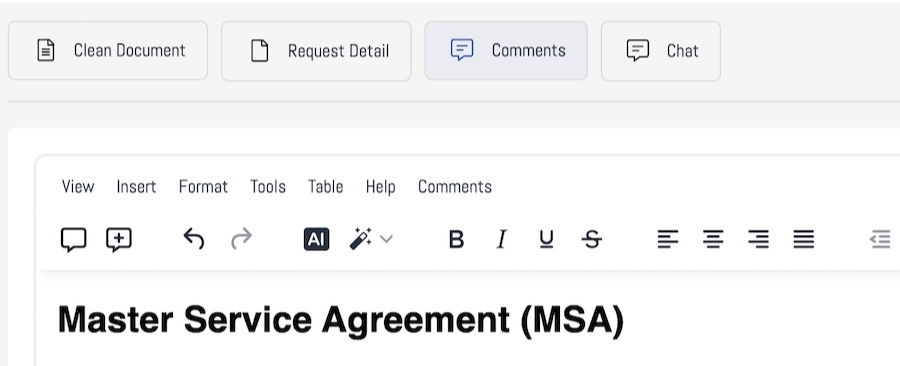 This will display the Comment's functionality(discussion bubbles) below:
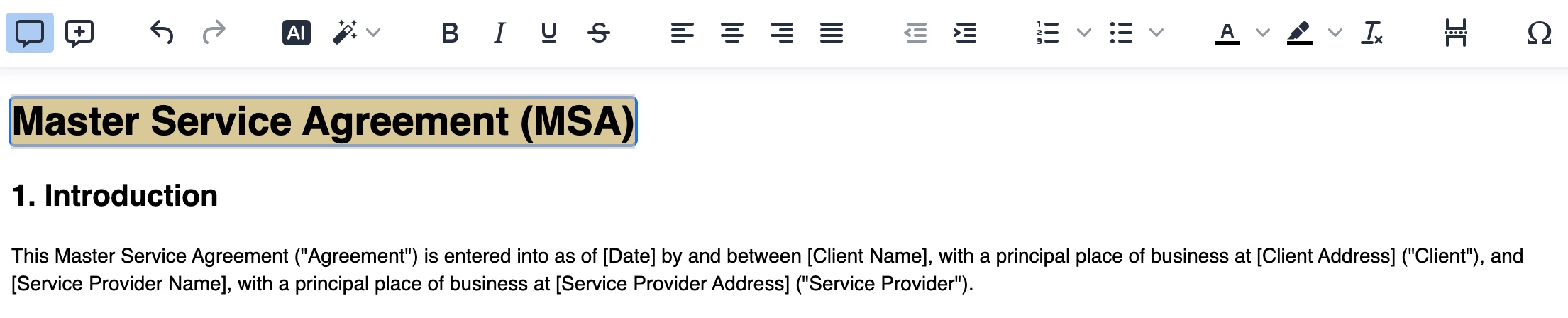
- To add comments, highlight the area you'd like to comment on and click the "bubble + " icon.
- To view comments, click the "bubble" icon.
5. Reviewing & Finalizing Your Agreement
- Once the attorney has completed drafting, they will notify you to review the agreement.
- If any changes are required, you can discuss them directly in the Chat Feature.
- Once you and the attorney confirm no further updates are needed, the attorney will finalize and close the project.
6. Completion & Notifications
- Once the project is closed, you will receive an email confirmation and an in-platform notification.
- Your finalized agreement will now be accessible for use in your dashboard.
- Please note that once our custom agreement is complete, edits can no longer be made. The Custom Agreement in your dashboard will serve as your master document and can be used in project (just like a custom template) within the SMVRT Legal platform.
Was this article helpful?
That’s Great!
Thank you for your feedback
Sorry! We couldn't be helpful
Thank you for your feedback
Feedback sent
We appreciate your effort and will try to fix the article